
Canon PIXMA TS4320
4.0Editor score
Automatic two-sided printing
Dual-band wireless connectivity
Smartphone and cloud printing
An easy to use wireless printer should make everyday printing feel uncomplicated, from joining a Wi-Fi network to producing polished pages from a phone or computer. The best models combine intuitive controls, dependable connectivity, clear app support, and enough print, scan, and copy features for homes and small offices. Compact size and helpful paper management also deserve consideration.
This guide compares 10 wireless all-in-one and inkjet models from Canon, HP, and Brother. It evaluates setup, wireless options, mobile printing, automatic duplexing, document feeders, displays, speed, media support, and the practical value offered by each model. The list includes basic home printers, multifunction devices, and higher-capacity options for heavier workloads.
The recommendations reveal where each printer fits: the Canon PIXMA TS6520 stands out for its clear OLED interface, the Canon PIXMA TS4320 delivers well-rounded value, and the Canon PIXMA TR7120 offers the most advanced feature set. Product ratings, availability, and prices can change, so readers should confirm current details before purchasing.
4.0Editor score

4.2Editor score

4.3Editor score
As an Amazon Associate we earn from qualifying purchases.
This side-by-side comparison highlights each printer's core functions, connectivity, paper handling, and user-interface features, helping you identify the model that best matches your printing routine.


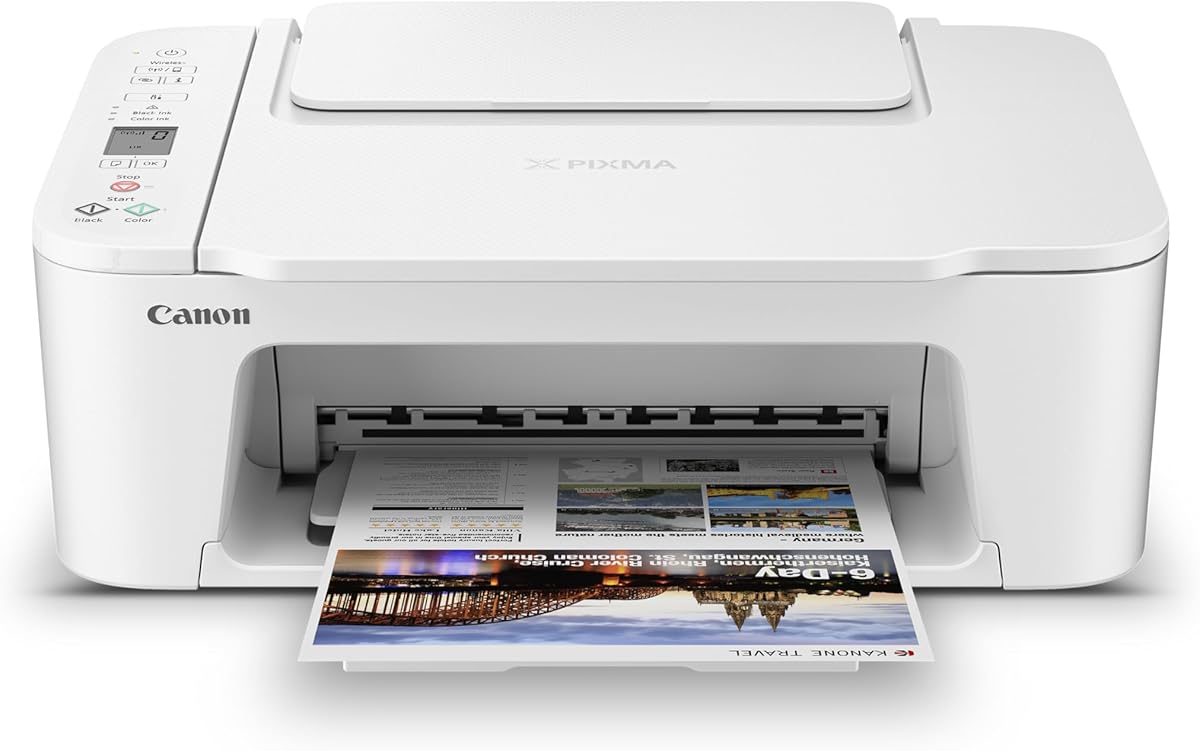

The Canon PIXMA TS4320 is a compact wireless all-in-one built for homes, hybrid workers, and anyone who wants uncomplicated printing without paying for a large office device. Its 4.0 rating reflects a practical mix of features: color printing, copying, scanning, automatic duplexing, and dual-band Wi-Fi. It handles standard documents and photos up to 8.5 by 11 inches, with or without borders.
We may earn a commission when you buy through this link, at no additional cost to you.
Ease of use is the TS4320's strongest theme. Setup can be completed from a smartphone or computer, while Canon PRINT, Apple AirPrint, and Mopria Print Service support convenient mobile printing. Its two-cartridge hybrid ink system uses a black cartridge and a color cartridge, making supplies straightforward to identify and replace. Automatic two-sided printing also helps reduce paper use during longer assignments.
The main limitation is that this is a basic all-in-one rather than a document-processing powerhouse. It has an integrated scanner for copying and scanning but no automatic document feeder, so multi-page paperwork must be placed on the scanner bed one page at a time. It also lacks the status screen found on higher-end Canon models, although the available app-based controls help compensate for that omission.
Choose the TS4320 if you want essential wireless functions, attractive color output, automatic duplexing, and a compact footprint at a restrained entry point. It is especially suitable for schoolwork, recipes, personal documents, photographs, and routine home-office pages. For people who frequently copy lengthy documents, consider the Brother Work Smart 1360 or Canon PIXMA TR7120, both of which include automatic document feeders.
Dual-band Wi-Fi supports both 2.4GHz and 5GHz networks, giving users more ways to establish a stable connection. Canon PRINT, Apple AirPrint, and Mopria Print Service also make it possible to begin a print from a compatible phone or tablet without emailing documents to a computer.
EPEAT Silver and ENERGY STAR certification make this model a practical option for buyers who want recognized efficiency credentials. Automatic duplexing reduces the number of sheets required for two-sided jobs, while the compact chassis helps it fit comfortably in an apartment, dorm, or small home office.
We may earn a commission when you buy through this link, at no additional cost to you.
The Canon PIXMA TS6520 is the most balanced option in this guide, earning a 4.2 rating for its approachable design and useful feature set. It combines color printing, scanning, copying, automatic duplexing, and a compact form factor. The 1.42-inch monochrome OLED display is a meaningful improvement over a button-only printer because it presents ink status and settings in a clear, glanceable format.
We may earn a commission when you buy through this link, at no additional cost to you.
Wireless setup is designed to be straightforward from either a smartphone or computer, and the printer supports Canon PRINT, Apple AirPrint, and Mopria Print Service. Dual-band Wi-Fi compatibility helps it work across 2.4GHz and 5GHz networks. The printer's two-cartridge hybrid ink system supports sharp text and vivid color, while media flexibility allows users to print documents and bordered or borderless photos up to 8.5 by 11 inches.
Its lack of an automatic document feeder is the clearest trade-off. That omission makes it less suitable for offices that routinely copy or scan long packets. The two-cartridge configuration is another consideration for buyers who want the smallest possible supply system, and its screen shows status information rather than acting as a full color touchscreen. Neither issue prevents it from serving as an excellent general-purpose home printer.
The TS6520 is best for users who want simple setup but also appreciate a visible interface and automatic duplexing. It fits naturally in a bedroom office, study, or shared family workspace. Choose it over the TS4320 if the OLED display is important, and over the TR7120 if you do not need an automatic document feeder. Its combination of clarity, compactness, and everyday versatility makes it a strong all-around recommendation.
The 1.42-inch monochrome OLED provides quick access to ink levels, printer status, and settings. It is especially valuable for users who want to resolve a paper or cartridge issue directly at the device instead of navigating through a phone or computer interface.
Despite its small footprint, the TS6520 includes automatic two-sided printing and versatile media support. It is a good fit for users who want borderless photos, ordinary documents, and clear wireless access without the size or complexity of a full office printer.
We may earn a commission when you buy through this link, at no additional cost to you.
The HP Envy 6155 is a wireless all-in-one aimed at households that want a color touchscreen, substantial paper capacity, and helpful software. Its 4.2 rating reflects a versatile feature set that includes color printing, copying, scanning, duplex printing, and an automatic document feeder. It produces everyday color documents, homework, and borderless photos while reaching speeds of up to 10 pages per minute in black and 7 pages per minute in color.
We may earn a commission when you buy through this link, at no additional cost to you.
The 2.4-inch touchscreen is one of the easiest controls in the group. It makes common tasks more approachable without requiring a computer, while dual-band Wi-Fi is described as automatically detecting and resolving connection issues. The HP App adds mobile printing, scanning, copying, and fax functions. HP AI is also used to help format web pages and emails more precisely, reducing unwanted content and awkward layouts.
One important compatibility point is that the printer is intended to work only with cartridges containing original HP chips or circuitry; cartridges without them may be blocked. The included three-month Instant Ink trial can simplify replenishment, although a subscription fee applies after the trial unless canceled. Buyers who dislike subscription-based ink programs should evaluate that cost and the cartridge restrictions before finalizing their choice.
The Envy 6155 is a good fit for students, families, and home workers who appreciate a prominent touchscreen and automatic feeder. It is more demanding in physical space and ink-program features than the Canon TS4320, but those additions suit users who want easier standalone operation. Choose this model when the interface and multipage document handling matter more than the smallest possible footprint.
The 2.4-inch color touchscreen gives users a familiar, menu-driven way to configure copies, scans, and prints. It is a stronger choice for shared households or older users who may prefer reading options on the printer rather than navigating a mobile app.
HP AI is designed to clean up web pages and emails before printing, helping avoid wasted pages and awkward layouts. The feature adds convenience for recipes, articles, email threads, and school assignments that would otherwise require manual formatting.
We may earn a commission when you buy through this link, at no additional cost to you.
The Brother Work Smart 1360 combines a compact housing with features usually associated with larger office machines. It prints, scans, and copies over a wireless network or through USB, and its 3.8 rating indicates solid fundamentals rather than an exceptional interface. The 150-sheet paper tray is among the most generous in this guide, reducing how often users need to add media.
We may earn a commission when you buy through this link, at no additional cost to you.
Its 1.8-inch color display offers direct access to popular cloud services, including Google Drive, Dropbox, Box, OneDrive, and more. That means users can locate and print compatible files without first transferring them to a computer. The Brother Mobile Connect app handles printing, copying, scanning, and device management from a mobile device, while Page Gauge helps monitor ink usage so users can respond before supplies run out.
Automatic duplex printing and a 20-sheet single-sided automatic document feeder make it useful for mixed home-office work. Black printing reaches up to 16 pages per minute and color printing up to 9 pages per minute, making it one of the faster models listed. The feeder's modest capacity means larger scanning batches still require multiple refills, and the rating is lower than those of the leading Canon and HP selections.
Choose the Work Smart 1360 when cloud access, a large input tray, and fast output are priorities. It is well suited to families, remote employees, and students who regularly work with files stored in common cloud platforms. Compared with the HP Envy 6155, it offers a larger paper tray and a useful ink monitor, while its smaller color display and ADF make it a different rather than universally superior alternative.
The color display can connect users to Google Drive, Dropbox, Box, OneDrive, and other supported cloud applications. Direct cloud access saves steps when the desired document is already stored online and avoids repeatedly sending files through email.
A 150-sheet paper tray supports sustained printing, while stated speeds of up to 16 pages per minute in black and 9 pages per minute in color suit routine documents. Automatic duplexing adds further convenience for multipage reports and assignments.
We may earn a commission when you buy through this link, at no additional cost to you.
The HP DeskJet 2955 is designed for people who need a straightforward wireless printer for letters, recipes, to-do lists, financial documents, and other basic color output. It carries a 3.7 rating and emphasizes simplicity over advanced document production. The all-in-one provides color printing, copying, scanning, mobile printing, and a familiar icon LCD rather than a large touchscreen.
We may earn a commission when you buy through this link, at no additional cost to you.
Dual-band Wi-Fi supports flexible network placement, and the HP App provides access to printing, scanning, copying, and faxing from a smartphone. HP AI helps format web pages and emails so that they print with fewer wasted pages or disruptive elements. Its 60-sheet input tray is adequate for occasional use, although it is the smallest in this comparison and will require more frequent refills during large jobs.
The most important limitation is the absence of automatic two-sided printing. Users must manually reverse pages for duplex documents, and there is no automatic document feeder for handling multipage scans or copies. Its stated print speeds of up to 7.5 pages per minute in black and 5.5 pages per minute in color also position it as a basic model rather than a high-volume printer.
The DeskJet 2955 makes sense for a small apartment, dorm room, or occasional home workspace where the priority is easy setup and low visual bulk. It also carries ENERGY STAR and EPEAT certification and is made with at least 70% recycled plastics. If duplexing or faster output matters, step up to the HP Envy 6155 or Canon PIXMA TS4320, both of which add automatic two-sided printing.
The icon LCD presents the most relevant controls without adding a large screen to the printer's footprint. This keeps the design approachable for basic documents, although users who regularly modify print settings may prefer the HP Envy 6155's color touchscreen.
Dual-band Wi-Fi and the HP App provide flexible connection and mobile control. The included AI-assisted formatting feature can improve the appearance of web pages and emails, reducing the need to edit those documents before printing.
We may earn a commission when you buy through this link, at no additional cost to you.
The HP OfficeJet Pro 8125 is built for a home office that produces professional-looking documents, reports, presentations, and flyers. Its 3.9 rating reflects a feature-rich design with color printing, scanning, copying, automatic duplexing, an automatic document feeder, and a large 225-sheet input tray. Stated output reaches up to 20 pages per minute in black and 10 pages per minute in color.
We may earn a commission when you buy through this link, at no additional cost to you.
A 2.7-inch color touchscreen is one of the largest displays in this guide and uses a phone-like interface for navigation. Dual-band Wi-Fi is designed for reliable connectivity, while the HP App extends printing, scanning, copying, and faxing to a smartphone. HP AI helps prepare web pages and emails for cleaner output, and HP Wolf Essential Security is included to help protect the printer within the network.
This model also carries cartridge-compatibility restrictions. It is intended for cartridges with original HP chips or circuitry and can block cartridges that lack them, while periodic firmware updates maintain those restrictions. A three-month Instant Ink trial is available, but a monthly fee applies after it unless canceled. The 225-sheet tray and ADF improve workflow, yet the device needs more physical space than the compact Canon alternatives.
Choose the OfficeJet Pro 8125 when document volume, faster output, and direct touchscreen control are your primary concerns. It is well suited to a dedicated office, a busy hybrid workspace, or a user who regularly prepares presentations and long reports. For a smaller desk, the Envy 6155 provides many similar functions with a more compact footprint and a smaller tray.
The 225-sheet input tray is the largest listed capacity, reducing refills during demanding print runs. An automatic document feeder further improves productivity by accepting multipage documents for copying or scanning without requiring each sheet to be placed on the scanner bed.
The large color touchscreen provides direct access to settings, and the printer's stated color speed of up to 10 pages per minute supports routine business documents. HP AI can simplify the layout of online content, while automatic duplexing keeps multipage paperwork efficient.
We may earn a commission when you buy through this link, at no additional cost to you.
The Canon PIXMA TR4720 stands apart with a built-in fax function, making it a practical choice for home offices that still need to send traditional paper faxes. Its 3.9 rating accompanies a four-function design that also handles color printing, copying, and scanning. An automatic document feeder and automatic two-sided printing make it more capable than basic compact models.
We may earn a commission when you buy through this link, at no additional cost to you.
The printer is designed for straightforward ink installation and replacement, and it supports mobile printing alongside its wireless connection. It can produce documents, photos, and borderless prints up to 8.5 by 11 inches, while the 100-sheet capacity is sufficient for moderate home use. A particularly convenient feature is Alexa integration, which can send low-ink notifications and, when enrolled, initiate a smart reorder through Amazon without requiring a subscription for that feature.
The stated black document speed of approximately 8.8 images per minute and color speed of approximately 4.4 images per minute are modest. A 4-by-6-inch borderless photo takes approximately 65 seconds, which is reasonable for a home multifunction device but not intended for high-volume photo production. There is also no display mentioned in the supplied features, so device management will rely more heavily on software and connection status.
Choose the TR4720 if built-in fax is a requirement and you want a compact Canon with automatic duplexing and multipage document handling. It is less suitable for users who want a large touchscreen or very fast color output. The PIXMA TR7120 offers a clearer OLED and stronger feature presentation, while this model prioritizes the practical addition of fax.
Printing, copying, scanning, and faxing are all built into the same unit, reducing the need for separate devices. The automatic document feeder and duplex function are especially helpful for forms, contracts, and multi-page documents that would otherwise require manual handling.
Alexa can notify users when ink is running low and can place a smart reorder through Amazon when smart reorders are enrolled. This approach helps maintain supplies without tying the feature to a required ink subscription, provided the printer is connected and configured for the service.
We may earn a commission when you buy through this link, at no additional cost to you.
The Canon PIXMA TS3720 is a basic home wireless printer built around quick setup and uncomplicated operation. It has a 4.0 rating and provides printing, copying, and scanning through a compact white design. The 1.5-inch segment LCD gives users a small but direct status interface, making it more approachable than a printer with no display.
We may earn a commission when you buy through this link, at no additional cost to you.
Canon states that setup can be completed in a few minutes, and the printer can join a Wi-Fi network without a computer. Mobile printing works through the Canon PRINT app, Apple AirPrint, and Mopria Print Service, while Chromebook compatibility is useful for students. Its two easy-replace cartridges simplify color printing and supply changes, with no need to handle multiple individual color inks.
Automatic duplexing is not included, so two-sided documents require manual page reversal. Print speed is approximately 7.7 images per minute in black and 4 in color. The media options are more creative than the basic specifications might suggest, covering envelopes, photos, high-resolution paper, banners, 5-by-5-inch square photos, and borderless photos up to 5 by 7 inches.
The TS3720 is a good match for students, apartment dwellers, and casual home users who prioritize setup simplicity and creative options. It can also serve as a Chromebook companion for schoolwork. If regular duplex printing is important, move up to the Canon PIXMA TS4320 or TS6520, both of which add automatic two-sided printing and dual-band Wi-Fi.
The printer can connect to a compatible Wi-Fi network without a computer, reducing a common source of setup friction. Canon PRINT, Apple AirPrint, and Mopria Print Service then provide several convenient routes for printing after the initial connection.
Support for banners, square photos, borderless images, envelopes, and high-resolution paper broadens the printer's usefulness beyond basic documents. POSTERARTIST Online can be used to create banners, signage, and other custom layouts through a free browser-based service.
We may earn a commission when you buy through this link, at no additional cost to you.
This Canon PIXMA TR4720 bundle combines the four-function wireless printer with starter PG-275 black and CL-276 color ink cartridges. It carries a 4.6 rating, the highest among the products in the guide, and supplies the essentials needed for immediate printing. The device supports printing, copying, scanning, and faxing while retaining the TR4720's compact home-oriented design.
We may earn a commission when you buy through this link, at no additional cost to you.
Setup is handled through the Canon PRINT Inkjet/SELPHY app, and the cartridges are designed for easy installation and replacement. An automatic document feeder is included, helping users copy or scan multipage paperwork without placing every sheet on the flatbed. Mobile printing support and the inclusion of a telephone or modem cable make the package oriented toward a complete home-office setup.
The supplied information focuses on bundle contents and setup rather than a detailed list of performance specifications, so it is best not to assume features that are not stated here. The package includes one black ink tank and one color ink cartridge, each with a package quantity of one. The listing also includes a power cord and documentation, making it a convenient option for new users who want supplies ready from the first job.
Choose this bundle if you want a new wireless all-in-one, built-in fax, an automatic feeder, and starter ink together. Its high rating makes it particularly attractive for general home use. Buyers who need clearly documented automatic duplexing or a more advanced display should compare the standard TR4720 listing, the TS6520, or the TR7120 before deciding.
The included PG-275 black and CL-276 color cartridges remove the need to order basic supplies immediately. Their straightforward installation supports the model's easy-to-use goal and gives new owners a more complete initial setup.
The four-function design adds useful versatility to a home workspace, while the automatic document feeder makes multipage copying and scanning more convenient. The included telephone or modem cable supports the built-in fax function from the outset.
We may earn a commission when you buy through this link, at no additional cost to you.
The Canon PIXMA TR7120 is the most advanced Canon in this guide, with a 4.3 rating and a feature set tailored to a serious home office. It combines color printing, copying, scanning, automatic duplexing, an automatic document feeder, and a 1.42-inch monochrome OLED. Although the body remains compact, the document feeder makes it far more capable of handling multipage work.
We may earn a commission when you buy through this link, at no additional cost to you.
The OLED display allows users to monitor ink levels, printer status, and settings directly on the device. Dual-band Wi-Fi supports 2.4GHz and 5GHz connections, and setup can be completed from a smartphone or computer. Canon PRINT, Apple AirPrint, and Mopria Print Service extend mobile access. The printer also supports a wide range of documents and photos up to 8.5 by 11 inches, with or without borders.
The automatic document feeder is the key advantage over the TS4320 and TS6520, particularly for users who scan or copy long reports. Automatic two-sided printing reduces paper consumption and simplifies the production of multipage documents. The trade-off is a higher premium tier and a two-cartridge hybrid ink system, so buyers focused on advanced workflow features must accept that configuration.
Choose the TR7120 when you want the balance of compact dimensions, clear controls, wireless flexibility, and genuine office convenience. It is ideal for hybrid workers, students with heavy coursework, and families that regularly scan or copy packets. For a similarly capable HP alternative, the OfficeJet Pro 8125 offers a color touchscreen and larger tray, while the TR7120 retains a more compact footprint.
The automatic document feeder accepts multipage materials for scanning and copying, while automatic duplexing handles two-sided printing automatically. Together, these features reduce repetitive manual work and help the TR7120 function as a credible home-office machine.
The monochrome OLED offers a more informative interface than a basic LCD while preserving the printer's compact footprint. Users can check status and adjust common settings without moving to a computer, and dual-band Wi-Fi provides flexible wireless placement.
We may earn a commission when you buy through this link, at no additional cost to you.
The easiest wireless printer is the one that fits your document volume, available space, and preferred way of working. Connectivity, controls, duplexing, feeders, ink logistics, and media support deserve different emphasis depending on whether the device serves a student, family, or busy home office.
Begin by checking how the printer joins your network and which software the manufacturer requires. Canon PRINT, HP App, and Brother Mobile Connect provide mobile access, but their menus and setup procedures differ. A computer-free Wi-Fi option is especially helpful for first-time users or anyone setting up a printer without easy access to a computer. Confirm that the printer is compatible with your operating system, mobile device, and selected network band before purchase.
In short, prioritize a clear setup process and app that matches how you already manage files. A good app is useful only if you can connect and print from it without repeated configuration.
Dual-band Wi-Fi support, covering 2.4GHz and 5GHz, appears on several Canon and HP models and provides more placement flexibility than a single-band connection. Brother offers wireless network and USB options, allowing a wired fallback when a wireless environment is difficult. Users should consider router placement, walls, and the distance between the printer and computer when deciding where to install the device.
Choose dual-band Wi-Fi for broader compatibility and flexible placement, but confirm that your home or office network supports the printer. A stable wired option can be valuable when wireless conditions are unreliable.
Automatic two-sided printing is one of the most useful features for anyone printing reports, coursework, or office documents. The Canon PIXMA TS4320, TS6520, TR7120, the HP Envy 6155, HP OfficeJet Pro 8125, and Brother Work Smart 1360 include automatic duplexing. The TS3720 and DeskJet 2955 are single-sided only, while the supplied TR4720 information does not clearly specify its duplex configuration.
If you routinely print multipage documents, automatic duplexing is worth prioritizing. It reduces paper consumption and eliminates the need to manually turn and reinsert every sheet.
An automatic document feeder is essential when handling multipage scans, copies, or faxes. The Brother Work Smart 1360 has a 20-sheet feeder, while the HP Envy 6155, HP OfficeJet Pro 8125, Canon PIXMA TR4720, and Canon PIXMA TR7120 also provide automatic document feeders. Canon TS models without a feeder are more appropriate for occasional single-page scanning and copying.
Choose a feeder for routine paperwork, and consider its capacity before making a decision. A larger feeder reduces interruptions during long documents, while flatbed-only models are usually simpler and more compact.
A visible display can make a printer substantially easier to use, particularly for people who print without a computer. The Canon TS6520 and TR7120 use 1.42-inch monochrome OLED screens, the Brother Work Smart 1360 has a 1.8-inch color display, the HP Envy 6155 has a 2.4-inch touchscreen, and the OfficeJet Pro 8125 has a 2.7-inch touchscreen. The HP DeskJet 2955 uses a basic icon LCD, while the Canon TS3720 uses a 1.5-inch segment LCD.
Choose a larger or color display for frequent independent operation. A simple LCD is sufficient when most jobs use standard settings and you prefer fewer controls.
Match the printer's speed to your actual workload rather than selecting on maximum figures alone. The HP OfficeJet Pro 8125 reaches up to 20 pages per minute in black and 10 in color, while the Envy 6155 reaches up to 10 in black and 7 in color. The Brother Work Smart 1360 is stated at up to 16 pages per minute in black and 9 in color. The Canon models provide more moderate performance suited to home use.
For occasional documents, speed may matter less than size and ease of use. For frequent report printing, favor faster output, a larger input tray, and automatic duplexing.
Every inkjet requires ongoing supplies, so compare the cartridge arrangement and any manufacturer restrictions before buying. Canon TS models use a two-cartridge hybrid system with one black and one color cartridge. HP Envy 6155, DeskJet 2955, and OfficeJet Pro 8125 are intended for cartridges with original HP chips or circuitry, and some are offered with an Instant Ink trial that becomes subscription-based unless canceled.
Review cartridge compatibility, replacement logistics, and subscription terms before purchase. Choosing a preferred supply program can improve convenience, but the long-term cost model should match your printing habits.
Input-tray capacity determines how often a printer needs refilling. The HP OfficeJet Pro 8125 has the largest listed tray at 225 sheets, followed by the Brother Work Smart 1360 at 150 sheets. Canon models generally offer a 100-sheet capacity or smaller. Media support also matters: the TS6520 and TR7120 handle documents and photos up to 8.5 by 11 inches with or without borders, while the TS3720 supports square photos and borderless images up to 5 by 7 inches.
Choose a larger tray for frequent or multipage work, and confirm supported sizes for envelopes, photographs, banners, or other specialty media. Basic document users can prioritize a simpler tray with fewer media requirements.
Start by placing the printer on a level surface near the intended network location and removing any packing material. Load clean, dry paper into the input tray, install the correct ink cartridges, and power on the machine. Use the manufacturer's setup process from a smartphone or computer, join the printer to the appropriate Wi-Fi network, and print a short alignment or test page before starting a larger job. Confirm that the computer or mobile device is using the correct printer.
For routine use, select the correct paper type and size in the print dialog rather than relying on defaults. Automatic duplexing should be enabled for multipage documents on models that support it. Use the automatic document feeder for clean, properly aligned sheets, and clean the flatbed scanner glass when copying small items or whenever visible marks appear. Check the display or app for ink warnings, paper jams, and firmware notices before troubleshooting a problem.
Care for the printer by keeping the scanner and paper path free of dust and debris, and avoid leaving printed pages exposed to humidity or direct sunlight. Use suitable ink cartridges and follow the manufacturer's cartridge-handling guidance. When connectivity changes, restarting the printer and router can resolve many temporary connection issues. Periodically review the app for firmware updates and verify that ink levels and paper settings remain correct before a large print job.
Look for clear mobile setup, broad Wi-Fi compatibility, and a manufacturer app that guides network connection and printer configuration. Canon PRINT, HP App, and Brother Mobile Connect are the relevant apps for the models in this guide. A printer that can join a Wi-Fi network without a computer can be especially convenient, although you should still confirm that your phone, computer, and network are compatible before purchase.
Dual-band support gives a printer more options for connecting to a router because it can use either 2.4GHz or 5GHz Wi-Fi. It can also make placement more flexible in homes where distance or walls affect the connection. The actual experience still depends on your router, wireless environment, and the number of connected devices, so a stable single-band network may still work well.
Automatic duplexing is highly useful if you print reports, coursework, forms, or other multipage documents. It prints both sides without requiring you to reverse and reinsert each sheet, saving time and reducing paper waste. For occasional short prints, manual duplexing may be acceptable, but many compact home printers add automatic duplexing for a modest increase in complexity.
Choose an automatic document feeder if you regularly scan or copy more than a few pages. It reduces the need to place each sheet on the scanner glass and is especially useful for multi-page forms, records, and packets. A flatbed scanner remains perfectly capable for photos, single pages, and irregular items, but multipage work will take longer without a feeder.
A basic LCD communicates a limited set of printer status and control information, while a color or OLED display can present menus, settings, ink levels, and job options more clearly. A touchscreen is generally easier for frequent standalone use, whereas a small display works well when most printing is initiated from an app or computer. The most valuable option is the interface that matches how often and how you print.
No. Some HP models in this guide include an Instant Ink trial, but the offering becomes subscription-based after the trial unless canceled. Users can still buy compatible ink directly, though the printer's cartridge-chip requirements should be understood first. Compare refill options and expected printing habits before selecting a printer based on its initial subscription offer.
Most models in this guide can print color photos as well as ordinary documents. The Canon TS6520 and TR7120 support bordered and borderless photos up to 8.5 by 11 inches, while the TS3720 supports square and borderless formats up to 5 by 7 inches. The HP Envy 6155 is also intended for borderless photos. Use suitable photo paper and allow the correct print settings for the intended size and finish.
Choose the TS6520 for the most balanced general-purpose option, especially if you want a compact printer with an OLED, automatic duplexing, and no document feeder. Choose the TR7120 when multipage copying and scanning are frequent enough to justify an automatic document feeder. Both share useful display, wireless, and duplexing features, but the TR7120 is the more office-oriented of the two.
The Canon PIXMA TS4320 is the best budget selection for people who want essential wireless printing, copying, scanning, and automatic duplexing in a compact package. The Canon PIXMA TS6520 is the strongest all-around recommendation because its OLED display adds clarity without bringing in a large office-style body. The Canon PIXMA TR7120 is the premium choice for users who need an automatic document feeder and more serious multipage handling.
Prioritize the features that match your daily routine. Basic users can focus on simple setup, mobile printing, and a manageable footprint. Students and home workers benefit from automatic duplexing, while people processing regular paperwork should look for an automatic document feeder, a larger tray, and faster output. A visible color touchscreen is valuable for frequent standalone operation, and cloud-app access can be especially convenient for files already stored online.
Ratings, product bundles, promotions, and prices can change, so check the current listing and feature details before making a final purchase. Confirm cartridge compatibility, network requirements, paper support, and the size of the installation area. With those checks completed, you can choose a wireless printer that feels genuinely convenient rather than simply equipped with the basic functions.

