
Logitech G PRO X2 SUPERSTRIKE
4.6Editor score
Haptic trigger feedback
44K maximum tracking
Eight-kilohertz wireless polling
Our Mouse for Photoshop guide compares ten leading models for precision, comfort, wireless connectivity, programmable controls, scrolling, and creative
A Mouse for Photoshop should make precise edits feel natural rather than forcing you to fight the cursor. The right model combines dependable tracking, comfortable handling, useful shortcut access, and smooth scrolling for long sessions inside image-editing software.
We compared ten mice based on the specifications and features relevant to digital artists, including sensor performance, button customization, wireless options, ergonomics, battery life, and navigation features. The list covers ergonomic productivity models, compact everyday mice, and specialized gaming mice.
Each pick reveals a different balance of control, comfort, portability, and functionality for creative work. Product ratings and configurations can change over time, so verify the latest specifications, software support, and listing details before making a purchase.
4.6Editor score

4.4Editor score
4.4Editor score
This side-by-side comparison highlights the sensor, control, connectivity, and ergonomic features that matter most when editing images in Photoshop, from compact wireless options to advanced gaming peripherals.




The Razer Basilisk V3 X HyperSpeed carries a 4.4 rating and stands out as a flexible choice for Photoshop users who want precision without giving up programmable controls. Its 18K optical sensor, ergonomic shape, and nine customizable buttons provide a convincing balance between accurate editing and efficient access to frequently used commands.
We may earn a commission when you buy through this link, at no additional cost to you.
The mouse's main strength is the combination of control placement and tracking performance. Nine easy-access controls can be assigned to tools or macros through Razer Synapse, while the 18K sensor supports detailed cursor adjustments and steadier control during masking, retouching, and brush work. Razer HyperSpeed wireless and Bluetooth expand the setup beyond a single desk, and the supplied feature list notes up to 285 hours on HyperSpeed and 535 hours on Bluetooth under specified conditions.
There are trade-offs to consider. Its styling and feature set are unmistakably aimed at gaming, which may not appeal to someone wanting a conventional office mouse. The Razer Synapse App is relevant for configuration, and the product instructions recommend disabling Windows' Enhance pointer precision for more predictable movement. None of that changes the underlying appeal, however, for a user who values programmable access and wireless flexibility.
This is our leading recommendation for most serious Photoshop users because it combines high sensor resolution, a comfortable form, abundant shortcut buttons, and two wireless connection methods. It is particularly attractive for artists moving between a desktop workstation, laptop, and tablet, provided they are comfortable installing the manufacturer's configuration software.
The 18K optical sensor gives artists ample sensitivity range for small selections, pen corrections, and fine brush movements. Adjusting the pointer settings and configuring the sensor through Razer Synapse can make the mouse more responsive to precise image-editing demands.
Nine customizable controls can be mapped to Photoshop tools, actions, or macros. This reduces repetitive trips through menus and helps artists maintain a smoother editing rhythm when zooming, changing brushes, or switching tools.
We may earn a commission when you buy through this link, at no additional cost to you.
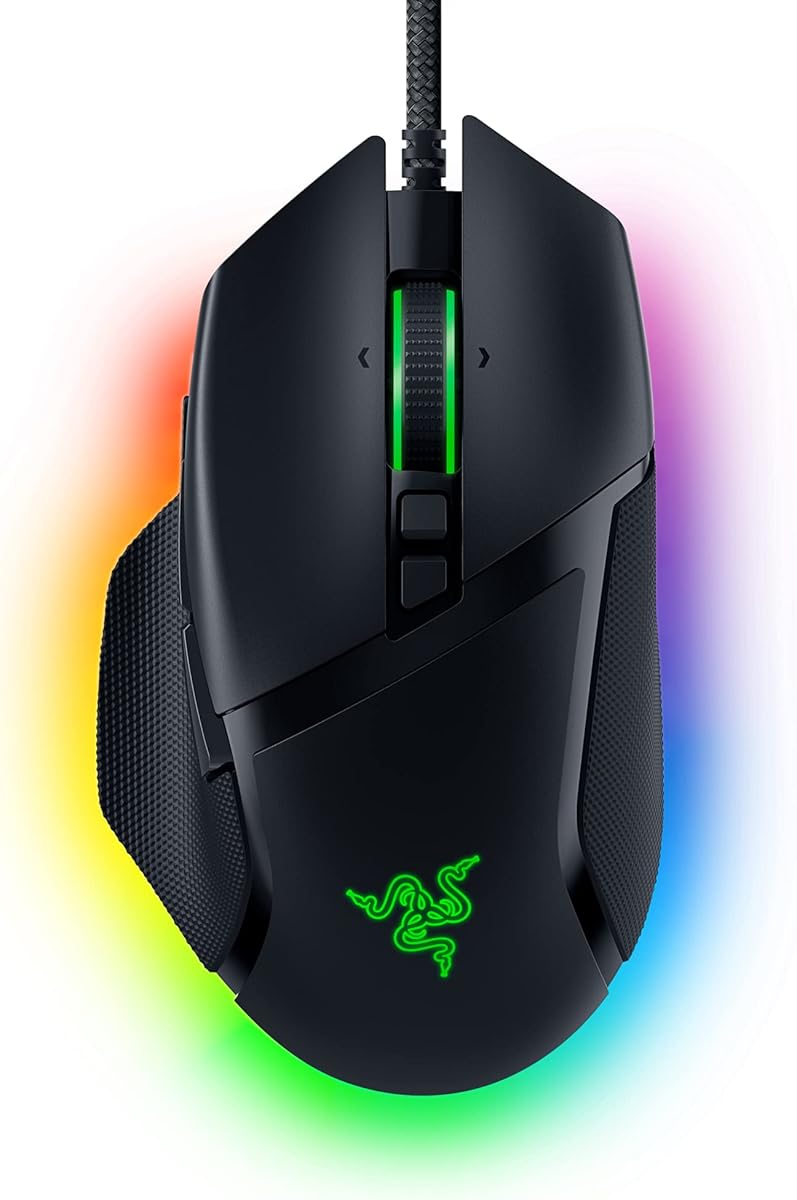
The Razer Basilisk V3 has a 4.6 rating and is the strongest choice for a Photoshop setup that favors precise tracking, abundant controls, and a dependable wired connection. Its 26K optical sensor and 11 programmable buttons make it particularly suitable for users who continuously switch between tools and actions.
We may earn a commission when you buy through this link, at no additional cost to you.
The standout feature is the Hyperscroll Tilt Wheel. It can free-spin for rapid movement through a long document and switch to tactile mode when users need controlled increments, while the tilt function provides another navigational input. Optical Gen 2 switches offer a stated 0.2ms actuation speed and a lifespan of up to 70 million clicks. The 26K sensor also provides a high ceiling for detailed pointer control.
Its wired design is the main limitation for anyone seeking a clean, cable-free desk. The mouse also carries extensive RGB customization and gaming-oriented design elements, including 11 lighting zones. For a Photoshop user who values function over aesthetics, though, those features add atmosphere without interfering with the core editing experience.
Choose the Basilisk V3 when accurate cursor movement, easy-access macros, and fast document navigation matter more than wireless portability. It is especially appealing to experienced Photoshop users who already maintain keyboard shortcuts and want additional programmable controls close to the hand.
The dual-mode Hyperscroll wheel handles both rapid scrolling and deliberate adjustments. Its tilt behavior can complement keyboard zoom commands, helping users move between a full canvas and a detailed editing view without constantly repositioning the hand.
With 11 programmable buttons, the Basilisk V3 offers considerable control over Photoshop actions. Users can assign the most frequent tasks to accessible positions, subject to their operating system and mouse software.
We may earn a commission when you buy through this link, at no additional cost to you.
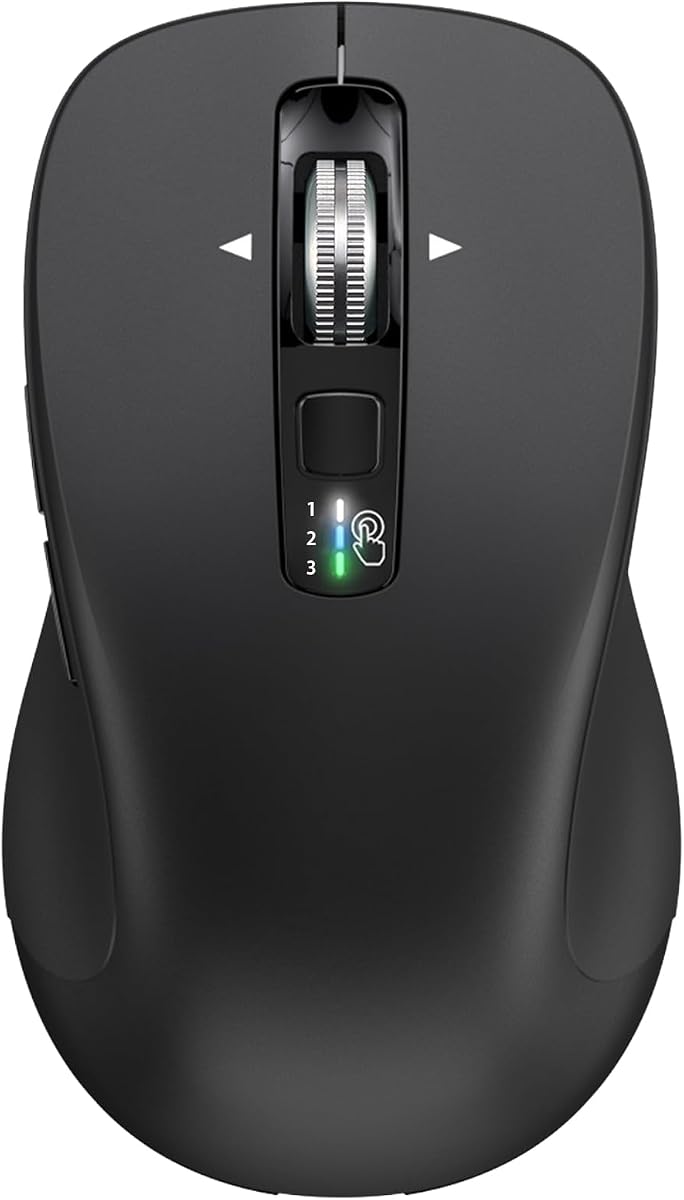
The CITLLA Wireless Bluetooth Mouse has a 4.4 rating and offers a practical mix of multi-device support, programmable controls, and four-way navigation. It is a compelling choice for budget-conscious Photoshop users who work across a computer, laptop, and tablet rather than requiring a high-end gaming sensor.
We may earn a commission when you buy through this link, at no additional cost to you.
A 2.4 GHz receiver and two Bluetooth connections allow the mouse to move among up to three devices using the included switching key. Its metal scroll wheel supports vertical and horizontal navigation, a valuable feature when working with wide canvases or spreadsheets. Five programmable buttons can be assigned to shortcuts or macros, and four DPI settings range from 1000 to 3000.
The maximum 3000 DPI setting is modest compared with the 26K and 44K sensors in the premium picks, but practical editing does not depend on headline resolution alone. Smooth behavior, predictable controls, and a comfortable 4.6-by-2.6-inch footprint may matter more for general Photoshop work. The supplied specifications also advertise an unusually long battery duration and include two batteries.
This mouse is best for a value-focused creative setup where switching devices and horizontal navigation are priorities. It may not satisfy a competitive gamer or an artist who wants extreme sensor resolution, but it gives ordinary editing workflows a surprisingly capable and flexible foundation.
Dual Bluetooth and the included 2.4 GHz receiver make it easy to move between a desktop, laptop, and tablet. The dedicated switch key helps keep workflows fluid when checking a reference image on another screen.
The four-way metal wheel is especially useful in wide editing interfaces and detailed spreadsheets. It can also make navigating layered or elongated image compositions more convenient.
We may earn a commission when you buy through this link, at no additional cost to you.
The Logitech G PRO X2 SUPERSTRIKE has a 4.6 rating and represents the most technically advanced pick in the guide. Its HERO 2 sensor supports up to 44,000 DPI, while the Haptic Inductive Trigger System provides real-time click feedback that can be customized rather than simply switched on or off.
We may earn a commission when you buy through this link, at no additional cost to you.
Its sensor tracks above 888 IPS and 88 g-force, specifications aimed at rapid, controlled movement. Ten actuation levels and five rapid-trigger reset levels allow users to tune click timing, and the supplied information states that the design delivers clicks 30 ms faster than the previous generation. For creative work, that translates to a mouse that can support both measured editing and rapid cursor repositioning.
The device requires Logitech G HUB for advanced features, and the stated eight-kilohertz polling is associated with LIGHTSPEED Wireless. Battery life is listed at 60 to 90 hours, with a USB-A-to-USB-C charging cable included. POWERPLAY 2 compatibility can provide continuous wireless operation, although that accessory is sold separately. The high specification level may also exceed what a typical retouching workflow needs.
Buy this model if you want the strongest sensor and most advanced control hardware in the roundup. It is particularly compelling for digital artists who also value fast wireless response, tactile feedback, and extensive configuration options.
The Haptic Inductive Trigger System is the defining feature. Its adjustable feedback allows users to choose how strongly a click is communicated, which can be useful when working in shared spaces or during extended editing sessions.
With tracking up to 44,000 DPI, the HERO 2 sensor provides a broad range for meticulous work. Resolution should still be paired with a suitable surface and sensible pointer-speed settings rather than used as the only indicator of accuracy.
We may earn a commission when you buy through this link, at no additional cost to you.
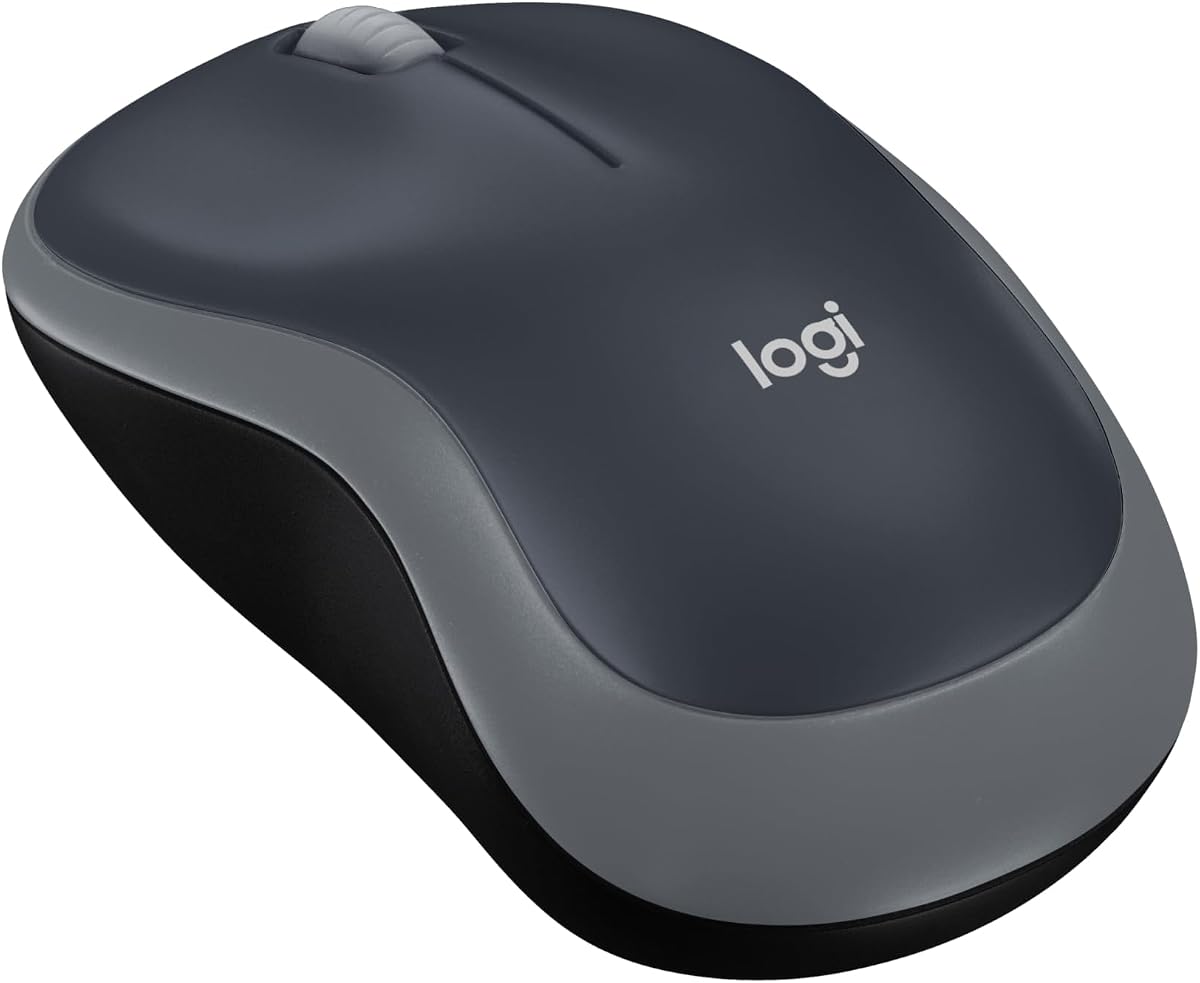
The Logitech M185 has a 4.4 rating and serves as the straightforward, portable option for light Photoshop editing. Its compact ambidextrous design works for either hand, while the simple 2.4 GHz connection avoids configuration software and complicated setup.
We may earn a commission when you buy through this link, at no additional cost to you.
The contoured shape is intended for small to medium hands and tight workspaces. A line-by-line scroll wheel supports conventional navigation, and the included nano receiver maintains a stated connection of up to 33 feet. The mouse works with Windows and Mac computers without requiring additional software, making it a practical choice for a laptop-based artist or a shared editing station.
Unlike the other picks, the M185 does not provide programmable controls, a high-resolution gaming sensor, or a vertical ergonomic structure. It is therefore better suited to occasional retouching, light image adjustments, and general computer work than to intensive editing that depends on quick tool switching. The included AA battery and smart sleep mode support the advertised one-year battery life under typical conditions.
Choose the M185 when reliability, portability, and immediate setup matter more than advanced controls. It is a dependable secondary mouse for a laptop, a travel companion, or a simple option for users who find gaming mice and specialized productivity mice unnecessarily complicated.
The tiny USB receiver and plug-and-play operation make the M185 easy to add to a laptop that may have limited ports. It offers a straightforward way to replace a touchpad without navigating a complex configuration process.
The M185 is designed for small to medium hands and uses an ambidextrous contour. Its modest size makes it suitable for travel, small desks, and users who prefer a lower-profile mouse.
We may earn a commission when you buy through this link, at no additional cost to you.
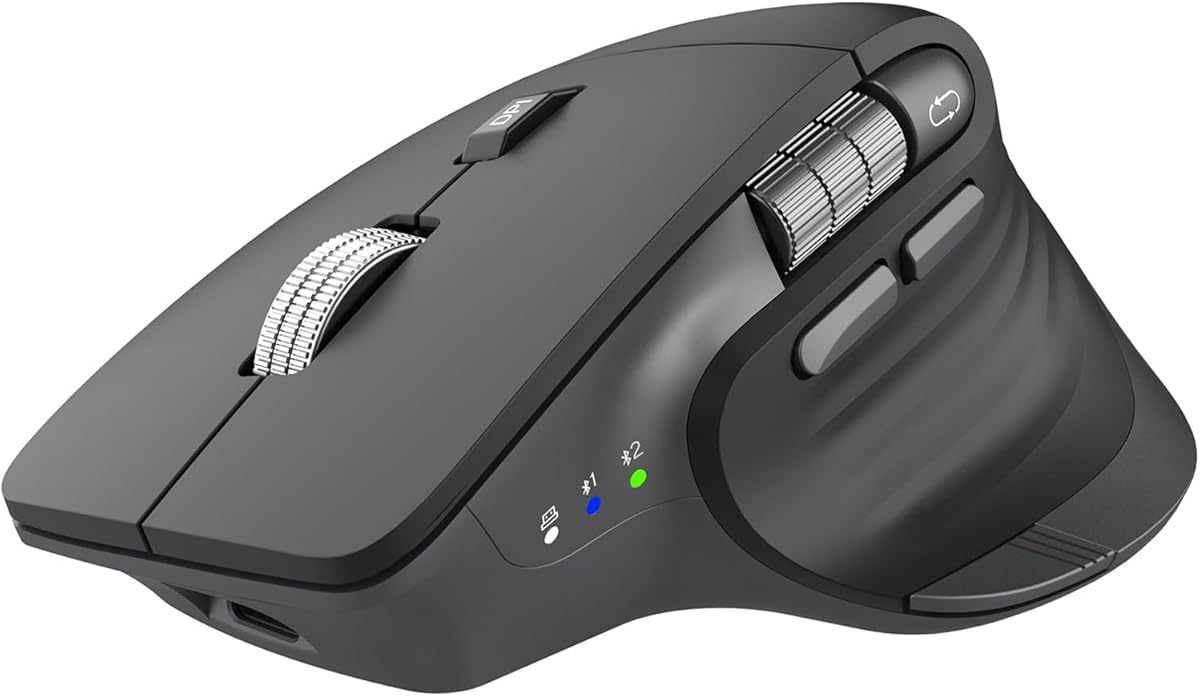
The CITLLA Ergonomic Bluetooth Mouse has a 4.3 rating and is designed for long work, study, or browsing sessions. Its curved form, silent clicks, flying scroll wheel, and dedicated horizontal thumb wheel make it particularly useful for detailed productivity work in Photoshop.
We may earn a commission when you buy through this link, at no additional cost to you.
The mouse pairs with up to three devices through dual Bluetooth and a 2.4 GHz USB receiver. Five DPI levels reach 4800 DPI, while the metal flying scroll wheel accelerates through long documents and the thumb wheel supports horizontal navigation. These separate controls can be valuable when working in wide canvases, spreadsheets, and layered interfaces.
A rechargeable design with USB-C charging is rated for up to 60 days of use per charge, although actual duration varies with activity. The product supports Windows, Mac, ChromeOS, Linux, iPadOS, and Android. Its 4.3 rating is slightly lower than most picks in the list, and the supplied information does not explicitly state that the side controls can be assigned to Photoshop commands, so users should verify that requirement before buying.
This is a strong recommendation for editors who work quietly, switch among devices, and want horizontal navigation without adopting a large gaming mouse. It is less suited to someone seeking extreme gaming tracking, but it offers a more productivity-focused creative experience.
The combination of a fast vertical wheel and horizontal thumb wheel supports wide documents and detailed interface navigation. It can be particularly useful for art directors comparing a composition with a spreadsheet or production notes.
Near-silent clicks reduce distraction during meetings, classes, and collaborative work. The rechargeable battery also removes the need to carry disposable cells during mobile work.
We may earn a commission when you buy through this link, at no additional cost to you.
The Transformers Vertical Ergonomic Mouse has a 4.2 rating and offers a distinctive combination of an upright shape, an LED status screen, and a multifunction knob. Those controls give Photoshop users a more tactile way to navigate long documents and wide workspaces.
We may earn a commission when you buy through this link, at no additional cost to you.
The knob can handle zooming, horizontal scrolling, and volume adjustment, while the LED screen displays real-time DPI, battery level, and connection mode. Its 1,030-gram weight is positioned for medium to large hands, and six DPI settings range from 800 to 4000. The product description specifically identifies CAD and Photoshop design work as suitable applications for the knob.
Vertical positioning may not suit every user, and the stated 103-gram weight and shape may feel substantial during long sessions. The supplied information does not specify whether the knob can be assigned to arbitrary Photoshop actions, so its value is highest for users who value the listed navigation functions. The 4.2 rating also places it behind several alternatives in overall customer feedback.
Despite those limitations, this is an interesting pick for creators who prefer a productivity-first vertical mouse and want navigation controls beyond a standard scroll wheel. It is best for medium to large hands and for users willing to adapt to the knob-centered workflow.
The multifunction knob is more useful in creative work when it provides a separate path for zooming or horizontal movement. That can make it easier to inspect an image without moving the main cursor away from the active editing area.
The LED screen displays DPI, battery, and connection mode, reducing the need to open software for basic status checks. It is a small feature, but one that can improve awareness during a multi-device workflow.
We may earn a commission when you buy through this link, at no additional cost to you.
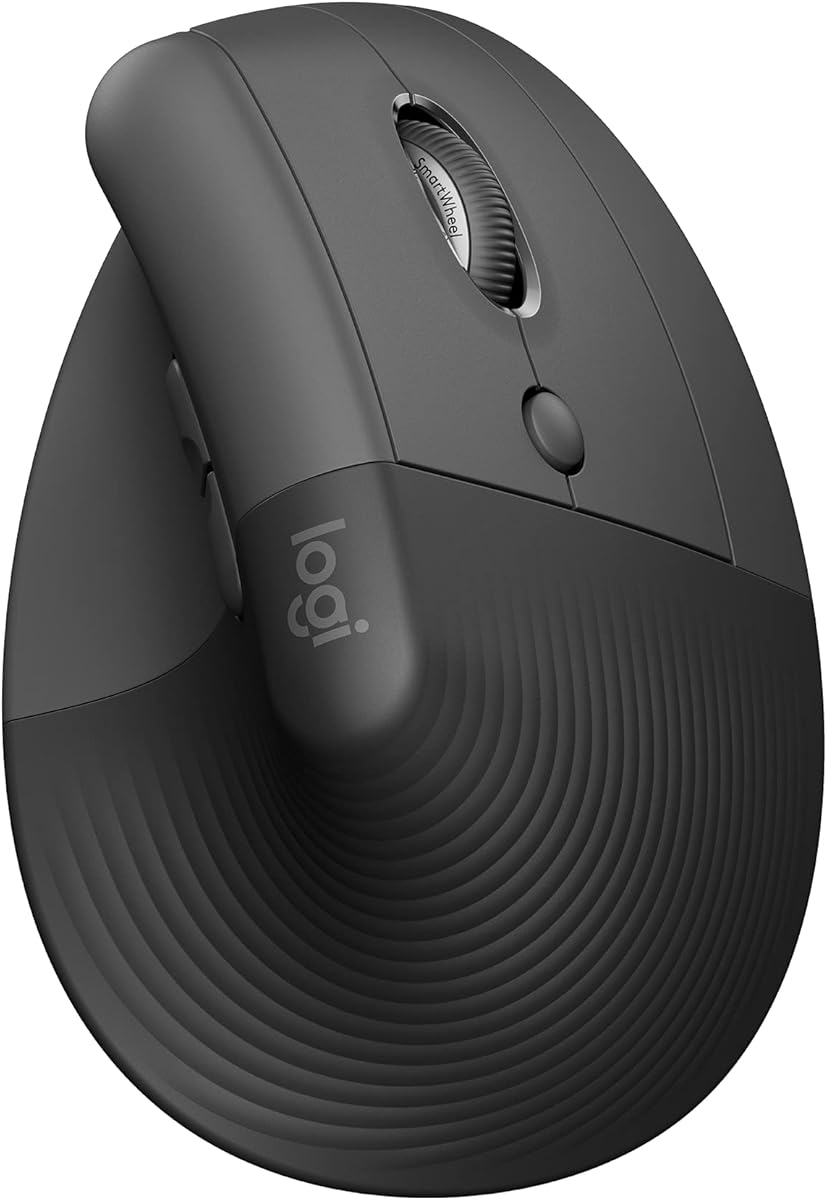
The Logitech Lift Vertical Ergonomic Wireless Mouse in Graphite has a 4.4 rating and is a refined choice for Photoshop users who prioritize wrist and forearm comfort. Its 57-degree vertical shape supports a more natural hand position while retaining the controls needed for productive digital work.
We may earn a commission when you buy through this link, at no additional cost to you.
The softly textured grip and snug thumb rest help users settle into the mouse, while quiet clicks and customizable buttons keep common actions accessible. Logitech's SmartWheel transitions between smooth and line-by-line scrolling, which is useful when moving from a detailed zoomed view to a longer document. The supplied information states that Lift was tested and approved according to criteria set out by leading ergonomists.
This model is specifically described as a fit for small to medium right hands. That makes it a less universal option than the ambidextrous Logitech M185, and artists with larger hands may find the grip less accommodating. It also relies on Bluetooth Low Energy or Logi Bolt connectivity rather than offering the same 18K or 30K sensor specifications seen in the Razer gaming mice.
Choose Lift Graphite if wrist comfort and a quieter workflow are central to your editing experience. It is particularly well suited to small- and medium-handed right-handed users who spend long periods navigating documents and refining images.
The 57-degree vertical angle keeps the forearm in a more natural alignment than a conventional flat mouse. That can make lengthy retouching and document-review sessions more comfortable for users sensitive to wrist strain.
The SmartWheel adapts its scrolling behavior to the task at hand. It supports quick movement over a long file while retaining the control needed for smaller adjustments in Photoshop.
We may earn a commission when you buy through this link, at no additional cost to you.
The Razer Basilisk V3 Pro has a 4.4 rating and offers a rich feature set for Photoshop users who want premium sensor performance, wireless freedom, and extensive shortcut control. Its 30K Focus Pro sensor and 11 programmable buttons make it one of the strongest all-around creative tools in the roundup.
We may earn a commission when you buy through this link, at no additional cost to you.
The sensor supports tracking on a wider variety of surfaces, including glass, while optical Gen 3 switches provide a stated 0.2ms actuation speed and an improved 90-million-click lifecycle. The Hyperscroll Tilt Wheel can free-spin or provide tactile feedback. Razer HyperSpeed wireless is designed for responsive use, with an optional path to an eight-kilohertz polling rate using separately sold hardware.
The optional polling upgrades add complexity and cost, so buyers should not assume they are included. Configuration relies on Razer Synapse, and the extensive RGB design may not suit a minimalist workspace. Battery figures range from 150 hours on Bluetooth to 110 hours on HyperSpeed under constant movement at 1000 Hz, with shorter endurance when high-frequency polling hardware is used.
This mouse is a strong fit for a high-end creative system that needs both precise tracking and abundant controls. It makes the most sense when its programmable buttons, premium sensor, and wireless flexibility outweigh the more specialized appearance and optional ecosystem.
The 30K Focus Pro sensor is a meaningful advantage for users who may work on glass or varied surfaces. A strong sensor should still be paired with an appropriate tracking area to realize its full potential.
Eleven programmable buttons support dedicated Photoshop tools and actions. Users can create a layout that reflects their own retouching process instead of relying exclusively on keyboard shortcuts.
We may earn a commission when you buy through this link, at no additional cost to you.
The Logitech Lift Vertical Ergonomic Wireless Mouse in Off White has a 4.4 rating and shares the core strengths of the Graphite version while suiting a lighter desk setup. Its 57-degree shape, thumb rest, quiet clicks, and SmartWheel make it comfortable and practical for extended Photoshop work.
We may earn a commission when you buy through this link, at no additional cost to you.
The vertical form encourages a natural forearm position, while customizable buttons support fast access to frequently used commands. SmartWheel scrolling shifts between smooth movement and precise increments, which is useful when reviewing a full image and then navigating a selected region. Connectivity options include Bluetooth Low Energy and Logi Bolt USB across major desktop and mobile operating systems.
Like the Graphite Lift, it is designed for small to medium right hands, so it is less suitable for left-handed users or people who prefer a traditional flat mouse. It also lacks the extremely high sensor resolution and fast polling specifications of the gaming-focused picks. Its strength is a calmer, more ergonomic productivity experience rather than technical performance at the highest level.
Choose the Off White version when you want the established Lift layout in a color that coordinates with a brighter workspace. It is an excellent companion for detailed editing, document navigation, and other creative tasks where quiet operation and wrist comfort are priorities.
The vertical alignment reduces the need to bend the wrist sharply while working. Combined with the thumb rest and textured surface, it offers a comfortable alternative to a flat mouse during long sessions.
Whisper-quiet clicks and SmartWheel scrolling help users review and annotate files without creating as much surrounding noise. These are practical benefits in shared studios and busy creative workspaces.
We may earn a commission when you buy through this link, at no additional cost to you.
Choosing a Mouse for Photoshop involves balancing pointer accuracy, comfort, shortcut access, scrolling, connectivity, and software compatibility. The most useful mouse is the one that supports your editing habits without creating friction.
Prioritize stable tracking and accessible sensitivity controls over a maximum number alone.
Choose a shape that fits your hand and keeps your wrist comfortable before considering extra features.
More buttons can improve efficiency, but reliable Photoshop assignment and easy access matter more than the raw count.
Look for horizontal or fast scrolling when your work frequently involves wide canvases and long documents.
Choose a wireless model with clear switching controls if you regularly move between computers or tablets.
Treat stated battery figures as maximum guidance and consider your usage pattern, charging access, and preferred power method.
Verify operating-system support, software permissions, and direct Photoshop integration before finalizing your choice.
Choose quieter switches for shared spaces, but confirm that the feedback remains satisfying for your editing style.
Begin by installing the manufacturer's software if the mouse has programmable buttons, adjustable DPI stages, lighting, or device profiles. Connect the receiver or pair the Bluetooth device, then set your pointer speed and test sensitivity at a comfortable zoom level in Photoshop. Map the buttons you use most often, such as the foreground color tool, brush selection, zoom, or one-touch undo, while avoiding assignments that could be triggered accidentally while dragging an edge or selection.
Create a workspace that supports the mouse rather than fighting it. Use a smooth, adequately sized tracking surface, keep the device at the height that allows your forearm to remain relaxed, and ensure the mouse has enough room for natural movement. A vertical mouse should rest where it naturally supports the angle of your hand, while a conventional gaming mouse benefits from a broad surface for quick repositioning. Take short breaks, adjust pointer settings for different screens, and use keyboard shortcuts for commands that are safer or more accurate than a side button.
For care, keep the underside free of dust and adhesive residue, and clean the sensor gently according to the manufacturer's instructions. Replace the battery promptly if response becomes inconsistent, and charge rechargeable models on a suitable surface. Wireless receivers should remain plugged into the computer during use, while Bluetooth devices should be disconnected when they are no longer needed. Periodic cleaning and thoughtful configuration will help preserve tracking consistency and make every editing session more efficient.
A gaming mouse can be excellent for Photoshop because many models combine high-resolution sensors, configurable buttons, fast response, and low-latency wireless. The important factors are comfortable handling, reliable tracking, and software that can map controls to the tools you use. A large gaming design may not be necessary for ordinary editing, but it can benefit users who want extensive customization.
The best sensitivity depends on monitor size, resolution, desk space, and personal preference rather than a single DPI number. A mouse offering multiple DPI settings is more useful than one fixed high setting because artists can move between broad canvas navigation and fine retouching. Begin with a moderate setting, make small adjustments, and disable unwanted pointer acceleration if your system settings permit.
A wired mouse provides a consistently connected desk with no charging or pairing routine. Wireless models offer greater freedom and cleaner workspaces, while modern wireless options can provide responsive performance for creative work. Choose based on your mobility, preferred power method, and need to move between computers or tablets.
Yes, a vertical mouse can be very suitable for Photoshop, especially for long retouching or document-review sessions. Its upright shape encourages a more natural wrist and forearm position, while programmable buttons and scrolling features support editing efficiency. Look for a model sized for your hand, because vertical comfort depends heavily on grip and dimensions.
Programmable buttons can usually be assigned to Photoshop functions through mouse software, generic keyboard commands, or macros, depending on the model. Users should install the required application, assign one function at a time, and test the buttons in Photoshop before beginning a detailed project. Avoid placing destructive commands on buttons that are easy to press accidentally.
The best choice depends on hand size and work habits, but comfort, precise tracking, and accessible controls are the main priorities. The Logitech Lift models emphasize a vertical ergonomic posture, while the Razer Basilisk models provide more programmable controls and higher sensor specifications. Users should choose the design that they can use comfortably for long periods rather than selecting solely by headline specifications.
A high-resolution sensor provides more room for adjustment, but it does not automatically make every mouse better for photo editing. Stability, surface compatibility, pointer settings, comfort, and control placement can have a greater effect on daily workflow. Many editing tasks are performed at moderate sensitivity, so a flexible multi-DPI mouse is usually more practical than assuming the maximum specification will be used.
Several picks in this guide can connect to multiple devices. The CITLLA models support dual Bluetooth plus a 2.4 GHz receiver, enabling three-device switching, while the Logitech Lift supports Bluetooth Low Energy or Logi Bolt connections. Razer HyperSpeed and Bluetooth models also provide multi-device options. Confirm the operating systems and exact pairing sequence for your devices before purchasing.
The Razer Basilisk V3 X HyperSpeed is the most versatile choice for most users because it combines an 18K sensor, nine customizable controls, ergonomic handling, and both HyperSpeed and Bluetooth connectivity. The Logitech G PRO X2 SUPERSTRIKE is the premium selection for maximum sensor resolution, haptic feedback, and advanced wireless polling, while the CITLLA multi-device mouse delivers the best budget-oriented combination of switching, scrolling, and programmable controls.
For long editing sessions, prioritize a shape that fits your hand and a mouse you can operate without strain. Artists who change tools constantly should look for reliable button mapping, while those working with broad compositions may value horizontal scrolling, tilt controls, or a navigation knob. Simple, portable workflows are well served by the Logitech M185, and quiet shared workspaces are covered by the Logitech Lift and CITLLA ergonomic models.
Before purchasing, check the latest listing details, software compatibility, device support, and current configuration. Ratings, hardware revisions, bundled accessories, and seller information can change, and the most suitable Mouse for Photoshop depends on your screen, workspace, editing habits, and preferred balance between precision and comfort.
