
Calibrite Display 123
4.0Editor score
Guided 1-2-3 calibration workflow
Supports two connected displays
USB-C connection included
Our colorimeter for monitor calibration guide compares ten options for accurate color, HDR support, ease of use, multi-display workflows, and professional
A colorimeter for monitor calibration helps transform an ordinary display into a more dependable creative tool by measuring and correcting its color output. The right device should suit your display technology, editing workflow, experience level, and need for precision across one or multiple screens.
We compared the products in this guide by examining sensor capabilities, supported display types, calibration software, brightness controls, multi-monitor functions, HDR and high-luminance support, and the practical features that improve repeatability. The list includes approachable tools, all-in-one creator kits, and professional colorimeters.
Each pick highlights a different reason to consider it, from a guided calibration process to advanced video monitoring and capture-to-edit color control. Ratings and technical details reflect the supplied product information, while prices and availability can change, so check the current listing before purchasing.
4.0Editor score

4.2Editor score

4.0Editor score
This side-by-side comparison covers sensor reach, display compatibility, software control, workflow breadth, and multi-screen support. It shows which products emphasize beginner-friendly calibration, professional HDR monitoring, or combined camera and display color management.



The Calibrite Display 123 is a straightforward monitor-calibration colorimeter for photographers, designers, video creators, and ordinary office users who want a more trustworthy editing display. Its defining feature is the guided 1-2-3 software workflow, which removes much of the guesswork traditionally associated with creating a display profile. The device also supports two displays, making it more useful than many single-screen alternatives for users who regularly work across a laptop and an external monitor.
We may earn a commission when you buy through this link, at no additional cost to you.
Color correction focuses on common display shifts that can affect the apparent neutrality of tones, shadow detail, highlights, and overall contrast. Brightness targets can be selected for native use or photo-oriented viewing, while the built-in before-and-after comparison lets users confirm that the process has produced a visible improvement. The compact body, adjustable counterweight, and USB-C connection also make it convenient to position against different screen sizes without adding unnecessary equipment to the workspace.
The main limitation is its scope. It is best suited to general photo editing, design, content creation, and color-accurate viewing rather than demanding HDR grading or advanced broadcast monitoring. It supports up to two displays, so creators with larger multi-screen arrangements may eventually need a more scalable solution. Even so, the focused feature set and guided process make it a practical starting point for users who value clarity and repeatability over a deep catalog of professional controls.
Choose the Display 123 if you are new to monitor calibration, edit photographs on one or two displays, or want a streamlined routine that you can repeat regularly. It is especially attractive for creators who want better color confidence without navigating dense technical menus. For serious HDR video or advanced studio workflows, the Display Plus HL offers more capability, but for everyday creative work this model provides an unusually clear and approachable path to a calibrated display.
The 1-2-3 workflow guides users through the essential calibration stages, making the device suitable for first-time users and anyone who prefers a predictable process. Built-in checks provide a clear way to confirm that the corrected profile is being applied.
Supporting two displays makes the colorimeter practical for photographers comparing a laptop with a larger editing monitor. Each screen can receive its own profile when consistent color is needed across both devices.
We may earn a commission when you buy through this link, at no additional cost to you.
The Calibrite Display Plus HL is designed for colorists, video editors, photographers, and advanced users who work with demanding panels such as mini-LED, OLED, Apple XDR, and super-bright displays. Its advanced high-luminance sensor can measure up to 10000 nits, giving it the reach needed to profile HDR-capable screens and assess extremely bright highlights rather than limiting itself to conventional office displays.
We may earn a commission when you buy through this link, at no additional cost to you.
Calibrite PROFILER provides Basic and Advanced modes, with detailed control over white point, luminance, contrast ratio, gamma, and custom patch sets. Video-oriented features include Rec.709 support, BT.1886 tone-curve options for Rec.2020 workflows, and tools that can help maintain smoother tonal detail. Quick Check, Profile Validation, Uniformity Check, and Profiler Manager add verification layers, while shared presets support more consistent team practices.
This is not the simplest route to a neutral display, and the number of available controls can feel excessive if your work is limited to basic photo correction. The bundled travel pouch, USB-C connection with USB-A adapter, and built-in 1/4-inch mount thread improve portability and setup flexibility, but the overall package remains geared toward professional users who understand why luminance targets, tone curves, and validation reports matter.
The Display Plus HL is the strongest choice in this list for HDR-capable production, high-end reference monitoring, and advanced grading environments. It also suits photographers who deliberately choose modern OLED or mini-LED panels and want deeper control than a general-purpose colorimeter provides. If you only need dependable color for everyday editing, a simpler tool may be easier to maintain, but professionals working near peak luminance gain considerably from the HL sensor and validation workflow.
The 10000-nit measurement range allows the colorimeter to work with HDR and super-bright panels that can exceed the limits of ordinary colorimeters. That range supports more representative measurements of highlights, blacks, and tonal separation.
PROFILER's Advanced mode exposes white point, luminance, gamma, contrast ratio, and custom patch controls. Broadcast standards, tone-curve options, validation checks, and shared presets make it better aligned with structured color pipelines.
We may earn a commission when you buy through this link, at no additional cost to you.
The datacolor Spyder Monitor Calibrator balances accessibility with a strong feature set, making it an attractive choice for creators moving between conventional laptop screens, desktop displays, OLED panels, mini-LED monitors, and Apple Liquid Retina XDR displays. Its most user-friendly feature is the approximately 90-second calibration process, which can create a more accurate starting point without requiring a lengthy technical session.
We may earn a commission when you buy through this link, at no additional cost to you.
An ambient light sensor measures changing room illumination so the software can adjust display brightness and contrast toward suitable viewing levels. Custom profiles can also be linked to different light conditions, allowing the display to respond more closely to its surroundings. The software supports pre-set and customizable calibration options, giving beginners an easy route while preserving flexibility for experienced users. DevicePreview beta adds a way to simulate how images may appear on other devices using the calibrated screen.
The included beta designation deserves attention, as software features under development can change or behave differently from established workflows. The product also lacks the specialized luminance and broadcast controls offered by the Display Plus HL. However, for photographers, designers, and general content creators who need fast calibration across varied modern panels, those limitations are reasonable trade-offs for a compact and efficient routine.
This Spyder model is our most versatile general recommendation because it combines quick setup, modern panel support, ambient-light adaptation, and multiple levels of control. It is well suited to a home studio, office, or hybrid workspace where displays may be used under changing lighting conditions. Choose the Calibrite Display Plus HL for intensive HDR grading, or the Display 123 for an even more guided two-display setup; otherwise, this model delivers an effective balance of capability and convenience.
The ambient sensor tracks room light and helps the software select appropriate brightness and contrast. Profile switching and light-level-based profiles can make day-to-day viewing more consistent.
The rapid workflow and support for OLED, mini-LED, and Apple XDR panels make this option practical for current creative setups. It reduces the effort required to create an accurate starting profile.
We may earn a commission when you buy through this link, at no additional cost to you.
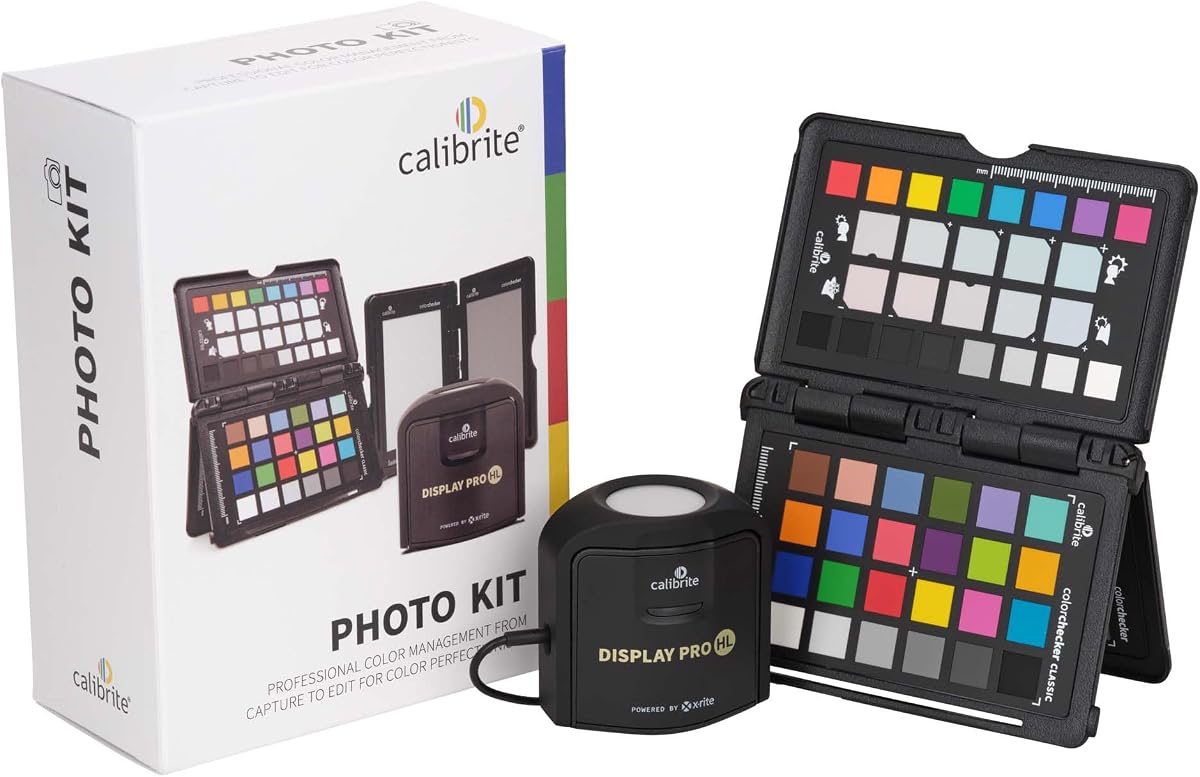
The Calibrite Photo Kit combines the Display Pro HL colorimeter with the ColorChecker Passport Photo 2 to address color consistency from camera capture through image editing. Rather than treating the display as an isolated component, it supplies tools for creating custom camera profiles and establishing repeatable white-balance and exposure references. That makes it especially relevant to RAW photographers seeking a more controlled path from capture to retouching.
We may earn a commission when you buy through this link, at no additional cost to you.
The Display Pro HL portion supports modern mini-LED, OLED, and Apple XDR panels, allowing the kit to cover both conventional and advanced display technologies. The Passport Photo 2 supports consistent white-balance and exposure references, which can reduce unwanted shifts before grading begins. Calibrite PROFILER adds customizable targets, white-point and gamma settings, and preset support for starting from a neutral baseline before creative adjustments.
Photographers who already own a color-management reference may not need the Passport component, and photographers who rarely edit photographs may find the broader capture workflow unnecessary. There is also more to learn when a single kit spans camera profiling and display calibration. Even so, the combined system can improve continuity between scenes, cameras, lighting conditions, and final editing displays rather than treating each stage as a separate color problem.
Choose this kit when your photography workflow includes RAW capture and you want the monitor and reference tools to support one connected process. It is well suited to studio photographers, product photographers, and advanced enthusiasts who value repeatability. If video grading or extreme HDR monitoring is the main priority, the Display Plus HL plus a dedicated capture reference may offer a more specialized route.
Combining camera profiles with display calibration helps connect two stages that often drift apart. The result is a more repeatable workflow for RAW files entering a controlled editing environment.
Passport Photo 2 provides a portable visual reference for white balance and exposure. It can reduce correction guesswork by establishing dependable starting points before detailed retouching.
We may earn a commission when you buy through this link, at no additional cost to you.
The Calibrite Creator Kit pairs the approachable Display 123 colorimeter with the ColorChecker Passport Video 2, creating a useful package for photographers, videographers, and hybrid content creators. The colorimeter handles display profiling, while the Passport provides capture references for exposure, white balance, and matching multiple cameras. That combination directly addresses color consistency from production through post-production.
We may earn a commission when you buy through this link, at no additional cost to you.
Display 123 offers a guided calibration workflow, support for two displays, and a before-and-after comparison, making it suitable for creators who need dependable editing color without a steep technical learning curve. Passport Video 2 can help establish an accurate white point, verify exposure, and keep footage consistent when lighting conditions change or when footage comes from multiple cameras. Together, these functions can reduce repeated correction and improve workflow efficiency.
This bundle is not intended to replace the advanced luminance, HDR, and broadcast controls found in specialist high-end colorimeters. A photographer who already owns a suitable reference card may prefer to buy the Display 123 alone, and users working only on a single screen may not need the camera-matching capabilities. The value of the bundle depends on how closely your own process resembles its capture-to-edit concept.
The Creator Kit is a practical choice for solo filmmakers and hybrid creators who shoot, edit, and occasionally switch between cameras or changing light conditions. Its simple display calibration and portable capture reference make it easier to establish consistent starting points. For high-end HDR grading, choose a higher-luminance tool; for a more accessible all-in-one system covering stills and video, this kit is compelling.
The Passport Video 2 supplies exposure and white-balance references at the capture stage, while Display 123 corrects the editing display. The bundle supports continuity across the parts of production that otherwise influence one another.
Camera matching is valuable when multiple cameras or mixed lighting introduce variations into a shoot. A common visual reference gives editors a more dependable basis for evaluating footage.
We may earn a commission when you buy through this link, at no additional cost to you.
The Calibrite ColorChecker Display Pro is a versatile colorimeter built around the ccProfiler or i1Profiler software environment. Its optical design is intended to deliver repeatability on the same display and consistency across different display types. For users who also need projector profiling, the rotating diffuser arm and integrated tripod mount add flexibility that dedicated laptop-screen colorimeters cannot provide.
We may earn a commission when you buy through this link, at no additional cost to you.
Beyond RGB display profiling, the device can function as a tabletop projector profiler, assist with ambient-light measurement, and protect the instrument optics with its diffuser cover. Its tripod-compatible construction is useful in larger venues or production environments where a stable, repeatable placement matters. The software's familiar profiling environment may also appeal to photographers and designers accustomed to X-Rite workflows.
The main drawback is its age relative to newer models. The supplied specifications do not identify high-luminance measurement, explicit mini-LED or OLED support, or the advanced HDR controls seen in current products. Users working in modern high-end video environments may therefore prefer a newer sensor and software feature set. That does not make the Display Pro unsuitable for standard creative displays, but its strengths lie in versatility and established profiling rather than cutting-edge luminance performance.
This model makes most sense for photographers, designers, and presentation professionals who may profile both monitors and projectors and value a stable optical platform. It can also appeal to users who prefer the established ccProfiler interface. For ordinary monitor calibration alone, a newer option with ambient-light automation may be more convenient; for mixed display-and-projector work, the ColorChecker Display Pro remains a versatile choice.
The rotatable diffuser arm can serve as a projector stand, an ambient-light measuring aid, or a protective cover. These functions broaden the device's usefulness beyond standard desktop calibration.
The optical design emphasizes repeatability, while the integrated tripod mount supports stable positioning. Consistent placement is essential when comparing calibration results or working with projectors.
We may earn a commission when you buy through this link, at no additional cost to you.
The Datacolor Spyder5PRO is designed primarily for photographers and designers who want a fast way to make laptop and desktop monitors more consistent. A full calibration takes about five minutes, offering a meaningful balance between speed and control. Its room-light monitoring evaluates ambient conditions to help set monitor brightness so users can better perceive shadow detail and highlight information.
We may earn a commission when you buy through this link, at no additional cost to you.
Before-and-after evaluation lets creators compare results using their own photographs, which can make the impact of calibration more meaningful than a generic test image. Display Analysis also allows users to evaluate and compare the performance of multiple laptop and desktop monitors, helping them identify differences that may otherwise complicate editing decisions. RGB monitor profiling provides a dependable baseline for standard creative work.
This generation lacks the explicit modern-panel and high-luminance specifications found in newer devices. It does not offer the HDR and broadcast-oriented tools of the Calibrite Display Plus HL, so it is better suited to conventional photo and design workflows than advanced reference-grade video. Its value instead comes from a mature, approachable package that brings room-light awareness, profile creation, and display comparison together.
Choose the Spyder5PRO if you are a photographer or designer who wants a clear calibration routine and useful tools for comparing multiple displays. It is well suited to home studios and offices where accurate color and consistent brightness can reduce the need for repeated print-edit-print corrections. For HDR content, extreme panel brightness, or advanced video standards, a newer specialist device would be a more logical fit.
Room-light monitoring evaluates the viewing environment and helps determine a suitable monitor brightness. This can make dark and light tonal detail easier to judge while editing.
Display Analysis is valuable for creators who switch among laptops and desktop monitors. Comparing their characteristics can reveal inconsistencies before those differences influence editing decisions.
We may earn a commission when you buy through this link, at no additional cost to you.
The ASUS ProArt CaliContrO MCA02 distinguishes itself by combining a professional colorimeter with display on-screen display control and the ASUS Dial. This three-in-one design aims to reduce the number of separate accessories on a creator's desk while providing hardware and software calibration through ASUS software. Its reversible USB-C connection is straightforward to use with compatible equipment.
We may earn a commission when you buy through this link, at no additional cost to you.
The colorimeter measures up to 10000 nits and supports LED, OLED, mini-LED, and other modern panel types, giving it the measurement range required for serious HDR calibration. A five-way navigator and shortcut key provide access to display OSD controls, while the integrated ASUS Dial can be customized for frequently used creator software. Compatibility with Adobe software is another relevant feature for photographers and editors working within established creative applications.
The supplied rating is notably lower than those of the other products in this guide, so buyers should investigate the current customer feedback and software experience carefully before deciding. Many of its secondary controls are most valuable within an ASUS ProArt setup, so the integrated design may not deliver the same benefit to users with unrelated displays and accessories. Combining several functions in one device also means troubleshooting and configuration may require more familiarity with the ASUS ecosystem.
This model is worth considering for creators who use ASUS ProArt hardware and want a single device for color measurement, display configuration, and shortcut control. Its high-luminance specification and modern-panel support are strong technical features for HDR-oriented workflows. However, professionals focused purely on portable, platform-neutral color profiling should weigh those advantages against the low supplied rating and the ecosystem-specific nature of its extra controls.
Integrating calibration with OSD navigation gives ProArt users a more unified way to measure and adjust their display. The hardware, software, navigator, and dial all contribute to the same creator-focused control concept.
The ASUS Dial can be mapped to frequently used creative commands, potentially reducing repeated keyboard or menu navigation. This benefit is most relevant to users already invested in the surrounding software and monitor environment.
We may earn a commission when you buy through this link, at no additional cost to you.
The Datacolor Spyder4Pro focuses on the fundamentals of efficient display calibration. Its full-spectrum color sensor and automated color-and-brightness process provide a practical way to establish accurate profiles, while a single sensor can calibrate multiple displays. This makes it relevant to photographers and designers who need to move between a laptop and one or more external screens without maintaining separate devices.
We may earn a commission when you buy through this link, at no additional cost to you.
Double-shielded color filters are designed to bring the sensor closer to CIE color standards and improve long-term stability. The supplied specifications also claim improved accuracy and better consistency between Spyder units, which can be valuable for teams that rely on similar results across shared hardware. ReCAL provides a faster way to recalibrate as display conditions change, reducing friction between regular maintenance sessions.
As an earlier-generation model, the Spyder4Pro lacks some of the explicit ambient-light automation, modern HDR specifications, and faster guided workflows found in newer products. It remains focused on conventional display profiling, which is appropriate for many photographers, office professionals, and students. Users working with very bright reference monitors or advanced HDR grading will need more specialized luminance measurement.
Choose the Spyder4Pro for a straightforward, budget-conscious approach to accurate laptop and desktop calibration. Its automated brightness handling, multi-display capability, and ReCAL assistant make routine maintenance easier, especially for users who understand color management but do not need extensive studio controls. A newer Spyder model may be preferable for automatically adapting to changing room light.
The ability to calibrate multiple displays with one sensor reduces equipment duplication. It is a practical feature for creators who regularly move between portable and desktop editing environments.
Shielded color filters and improved long-term stability support more consistent profiles over time. The ReCAL assistant also makes repeat calibration less cumbersome when conditions change.
We may earn a commission when you buy through this link, at no additional cost to you.
The Datacolor Spyder X Pro remains a practical option for photographers who want fast, understandable calibration without operating a complex reference system. Its lens-based color engine is designed to improve color accuracy and consistency across multiple monitors, while room-light monitoring helps optimize brightness for the viewing environment. Automatic profile changing reduces the need to remember which profile belongs to a particular screen.
We may earn a commission when you buy through this link, at no additional cost to you.
The single-click calibration wizard and 12 predefined targets make the process approachable for first-time users. A full calibration can be completed in a minute or two, which helps encourage regular maintenance rather than treating calibration as a rare technical task. SpyderProof provides before-and-after evaluation using the user's own images, giving a more personal way to inspect changes in shadow detail, white balance, and overall color.
This device does not offer the 10000-nit measurement range, explicit modern-panel support, or advanced broadcast controls found in newer specialist tools. Its strongest benefits remain accessibility, room-light awareness, automatic profiles, and reliable multi-display software. For standard photographic editing and visual design, those capabilities can be more valuable than a large collection of specialized reference controls.
Choose the Spyder X Pro if you want a quick calibration routine, helpful visual comparisons, and simple management of several displays. It is especially suitable for photographers and creative users who need consistent color across frequently used screens without diving deeply into manual gamma or luminance adjustments. Users preparing for advanced HDR or high-end reference work should choose a newer high-luminance system instead.
The wizard and predefined targets reduce the number of technical decisions involved in the first calibration. A rapid workflow also makes it easier to recalibrate routinely as display output changes.
Room-light monitoring and automatic profile changing help each display adopt a suitable profile for its environment. This is particularly useful for users who alternate between a laptop and an external monitor.
We may earn a commission when you buy through this link, at no additional cost to you.
The best colorimeter for monitor calibration depends on your display type, creative specialty, required precision, and tolerance for setup complexity. These factors help narrow the field before you compare software features and workflow details.
Begin by confirming that the colorimeter supports the panel technology in your workstation. Standard LCD and IPS monitors generally pose fewer challenges, while OLED, mini-LED, Apple XDR, and other high-performance panels may require a newer sensor and software with explicit compatibility. Modern options such as the Display Plus HL and the newer Spyder model are better aligned with these varied technologies than older colorimeters whose specifications focus on conventional RGB displays.
Choose a device that explicitly supports every monitor you plan to calibrate. Compatibility should cover both laptop and desktop screens if your workflow changes location or if one display is a secondary reference.
Luminance capability determines whether a colorimeter can evaluate the full brightness range of your screen. For HDR grading, reference work, or super-bright panels, a sensor that measures up to 10000 nits provides a substantially more useful operating range. A standard colorimeter remains sufficient for many SDR editing tasks, but it cannot offer the same insight into extreme highlights as a high-luminance model.
Match measurement range to the brightest display you actually own. Paying for extreme capability makes sense for HDR professionals, while ordinary editing users gain less from a dedicated high-luminance sensor.
The software determines how much guidance you receive and how much manual control you can exercise. Guided workflows are helpful for beginners, while advanced modes with white-point, gamma, luminance, contrast-ratio, and patch controls serve technical users. Look for validation and uniformity checks if you need evidence that a profile is performing as intended rather than simply being generated.
Favor software that matches your experience level and the standards used in your work. A clean guided interface can improve consistency, but extensive controls are more useful when you understand the measurements.
If you edit across two or more screens, verify whether the colorimeter can profile each display and how the software identifies them. Individual profiles are necessary because no two displays produce exactly the same output, even when they are the same model. Automatic profile changing and room-light-based profiles can further simplify a changing or multi-device workflow.
Count every display in your regular setup before purchasing. For two screens, the Display 123 is purpose-built; for broader arrays, look for software with scalable multi-monitor management.
Video professionals may need tone curves, broadcast targets, and validation checks in addition to basic RGB display calibration. Rec.709, BT.1886, and Rec.2020-related options can help align a display with specific production pipelines. These controls matter most for editors, colorists, and studios that need repeatable decisions between captures, monitors, and client deliverables.
Treat HDR and broadcast features as workflow requirements rather than general quality labels. If you work in those formats, use a colorimeter whose software exposes the relevant standards and luminance controls.
A colorimeter corrects only the display portion of a larger color workflow. Kits that include a ColorChecker reference can also support camera profiling, white balance, exposure checks, and camera matching at the capture stage. Photographers working with RAW files or hybrid creators filming under changing conditions may value that continuity more than additional on-screen controls.
Choose a bundled system only when you will use the capture reference. A display-only colorimeter offers better focus for editors who do not shoot or already own an effective reference chart.
A useful colorimeter should make calibration easy enough to perform regularly. Look for clear wizards, sensible targets, automatic brightness handling, room-light monitoring, and quick recalibration tools. The Display 123's guided workflow and Spyder4Pro's ReCAL assistant illustrate two approaches to reducing ongoing maintenance effort.
The best device is not necessarily the one with the most options. Choose the interface you can understand and repeat, because consistent recalibration matters more than occasional access to an obscure setting.
Consider where the colorimeter will be used and how displays are positioned. A compact body, reversible USB-C connection, counterweight, and diffuser or stand features can make placement easier across different monitors. The ColorChecker Display Pro adds projector versatility, while the Display Plus HL includes a travel pouch for professionals who calibrate on location.
Choose a design that fits your working environment and display sizes. Stable positioning and repeatable measurements matter more than a premium finish or compactness alone.
Begin by allowing the monitor to warm up, then set it to a neutral operating state and remove direct sunlight or bright reflections from the screen. Connect the colorimeter as directed, launch its companion software, and choose the display you intend to calibrate. Close any image or design application that could change the screen color while the measurement process is underway.
Follow the software prompts carefully, keeping the colorimeter in the specified position and allowing each test patch to stabilize before measurement. Select a target appropriate to your workflow rather than accepting every default without consideration. After the profile is created, confirm that it loads correctly, review any validation or uniformity results, and use the before-and-after comparison to verify the result with your own images.
Keep the sensor away from dust, direct heat, liquid, and scratches, and store it in a protective pouch or case when it is not in use. Recalibrate when you notice a difference, change the display settings, move the monitor, or alter the room lighting substantially. Establishing a regular maintenance schedule is more effective than waiting for visibly incorrect color before acting.
Factory calibration provides a useful starting point, but individual displays can vary and their behavior may change over time. A colorimeter measures your specific panel in its current environment and creates a profile for that setup. This is particularly useful when matching multiple displays or working in a room with controlled ambient light.
Yes, provided the included software supports the number and types of displays you own. Each monitor needs its own calibration and profile because screens of the same model can still produce different colors. The Display 123 supports up to two displays, while several Datacolor models offer broader multi-monitor management.
Usually not. A 10000-nit measurement range is most valuable for HDR, super-bright, mini-LED, OLED, and XDR reference displays. Standard SDR editing can be handled effectively by more approachable devices with traditional display support, ambient-light monitoring, and repeatable RGB profiling.
A ColorChecker is useful when you want to control the capture stage as well as the display. It can support camera profiles, white-balance references, exposure checks, and camera matching. A display-only colorimeter is sufficient for editors who do not shoot or already have a dependable reference chart.
Recalibrate when display settings change, the monitor is moved, room lighting changes substantially, or you notice a visible color shift. Some professionals follow a regular monthly or quarterly schedule, while others recalibrate more often during intensive production periods. The exact interval depends on your display, environment, and workflow.
Calibration improves accuracy within each screen and helps create more consistent output across displays. It cannot make every device show identical brightness or color in every application, and operating systems, display modes, and device-specific rendering can still cause differences. Profiles reduce those inconsistencies and give you a more dependable foundation.
Calibrate before grading whenever possible, because the profile establishes the display's working baseline. You can recalibrate after major display changes or if the display's behavior appears to have shifted. Frequent recalibration during a grading session can help maintain a consistent viewing baseline.
Calibration is the measurement and adjustment process used to characterize a display's behavior. Profiling is the creation and installation of a color profile based on those measurements. The profile tells color-managed software how to reproduce accurate colors on that particular display.
The best colorimeter for monitor calibration ultimately depends on the work you need to trust. Display 123 offers the simplest guided experience and supports two screens, the newer Spyder model balances quick calibration with adaptive ambient-light features, and the Display Plus HL delivers the most extensive high-luminance and video-oriented controls.
For standard creative work, prioritize confirmed support for your exact display type, easy repeat calibration, and useful multi-monitor management. HDR professionals should examine high-luminance range, tone curves, and broadcast standards, while photographers who also capture images may gain more from a kit that includes a ColorChecker reference and a complete capture-to-edit process.
Check the current product listing, included software, compatibility details, and accessory availability before purchasing. Prices, ratings, and product configurations can change, but the most reliable purchase is one that matches your displays, workflow, and calibration habits rather than one based only on a headline specification.